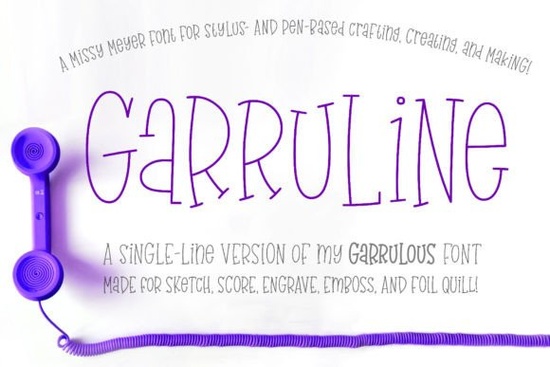
What makes a single-line font different from regular typefaces?
Regular fonts use closed outlines. When a drawing tool traces them, it draws both sides of every stroke, creating a doubled effect. Single-line and hairline fonts remove the outline entirely. Each character becomes one continuous path, so your pen, scoring wheel, or engraving bit moves efficiently. This format is not meant for word processing or vinyl cutting. It is specifically built for tools that draw, score, or etch.
Garruline keeps the friendly, handwritten feel of its original serif version while adapting every glyph to a single-path structure. You get two uppercase-height alphabets, with the lowercase set offering alternate letterforms that mimic natural writing. The package includes thirty double-letter ligatures, extensive punctuation, and over three hundred extended Latin characters. In total, you are working with more than 530 glyphs, all carefully coded for smooth access.
Which machines and software work best with this style?
Because the characters are delivered as TTF files with full OpenType and PUA encoding, you can access every ligature in most modern applications. Vector programs like Adobe Illustrator, Affinity Designer, CorelDRAW, and Inkscape handle these fonts well. The setup is straightforward: type your text, apply a stroke instead of a fill, adjust the line weight to match your tool size, and expand the text to outlines before sending it to your machine.
Crafters using Cricut Design Space, Silhouette Studio, or laser software will find both the hairline and single-line versions useful. Different programs interpret line data differently, which is why the download includes both formats. Install both and run a quick test if you are unsure. Keep in mind that Brother Canvas Workspace has historically struggled with single-line font data, so you may need to convert your text to paths elsewhere first. You can also compare how this style works alongside other handwritten serif options for crafting when planning product lines.
How do you set up the strokes and ligatures?
A natural result depends on ligatures and stroke settings. When you type, the font automatically swaps certain letter pairs with the included double-letter ligatures. If your software supports OpenType features, toggle these on in the glyph panel. For programs that do not auto-replace ligatures, manually select them from the character map.
Once your text is ready, remove the fill color and apply a thin stroke. Start with a 0.5 pt to 1 pt line weight for fine liners or infusible ink pens, and increase the stroke slightly for broader markers. Always preview the path before sending it to your machine. Adjust the stroke value and expand the text again if the lines look too light or heavy. This method gives you full control over line thickness without distorting the letterforms.
What should you check before installing?
Single-line typefaces behave differently than standard fonts, so a quick compatibility check saves time. Review the included PDF guide to see which version matches your software. Remember that font previewers will display these characters as thin or unusually spaced. That is completely normal and does not reflect how the paths will draw on your material. Also, verify that your machine settings are configured for drawing or scoring rather than cutting, since the file contains no closed cut paths.
If you want to see how this typeface fits into your current workflow, you can browse Garruline alongside other crafting fonts to compare line weights. Many small business owners and print-on-demand sellers use single-line styles for personalized tags, engraved wood, foil-stamped cards, and custom labels. The consistent line structure keeps production predictable when fulfilling orders.
Quick setup checklist before your first project:
- Install both TTF files and restart your design software.
- Type a short test phrase and open the glyph panel to verify ligatures.
- Remove the fill, apply a stroke, and match the line weight to your tool.
- Expand the text to outlines and check for overlapping nodes.
- Run a material test on scrap paper before starting your final piece.
Download the compatibility guide, run a quick stroke test, and you will have a reliable drawing font ready for your next handmade project.
Get Started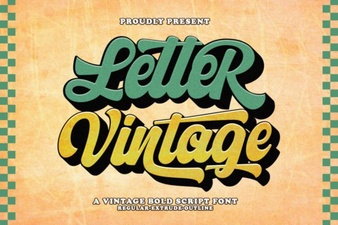 Vintage Lettering Fonts for Creative Design Projects
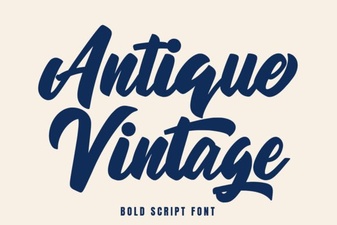 Timeless Antique Fonts for Creative Projects
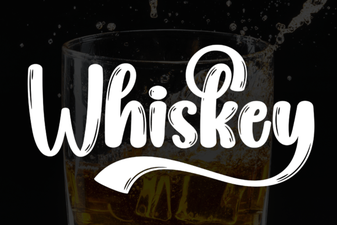 Whiskey Font Styles for Branding and Design
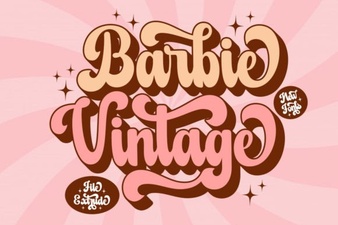 Designing with Vintage Barbie Extrude Font Style
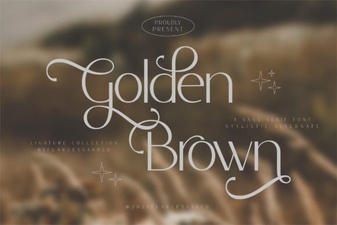 Golden Brown Fonts: a Design Guide
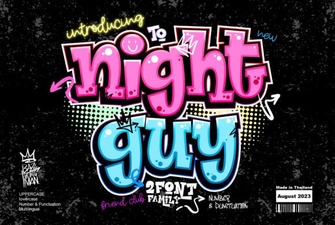 Night Guy Font: Creative Typography Projects